 Code Inspector
Feature All
This article introduces all the features provided by code-inspector-plugin.
Feature Settings
You can set the feature switches through the behavior parameter, the default parameters are as follows:
codeInspectorPlugin({
  behavior: {
    locate: true,
    copy: false,
    target: '',
  },
}),
Code Location
behavior.locate is used to set whether the code location feature is enabled, the default value is true. Clicking will automatically open the code editor and move the cursor to the code position of the element.
Copy Path
behavior.copy is used to set whether to copy the path to the clipboard, the default value is false. For vibe coding developers, this function is very useful, you can directly copy the element information {file}:{line}:{column} to the clipboard.
Custom Target
behavior.target is used to set the link to jump when clicking an element, you can use this parameter to jump to a specified link when clicking an element, such as the repository code address of github or gitlab.
Custom Behavior
code-inspector-plugin will trigger the following event when clicking the element mask layer, so you can customize the code-inspector:trackCode event in the code to control the corresponding behavior.
window.addEventListener('code-inspector:trackCode', () => {
  sendLog('trackCode');
});
Switch Feature
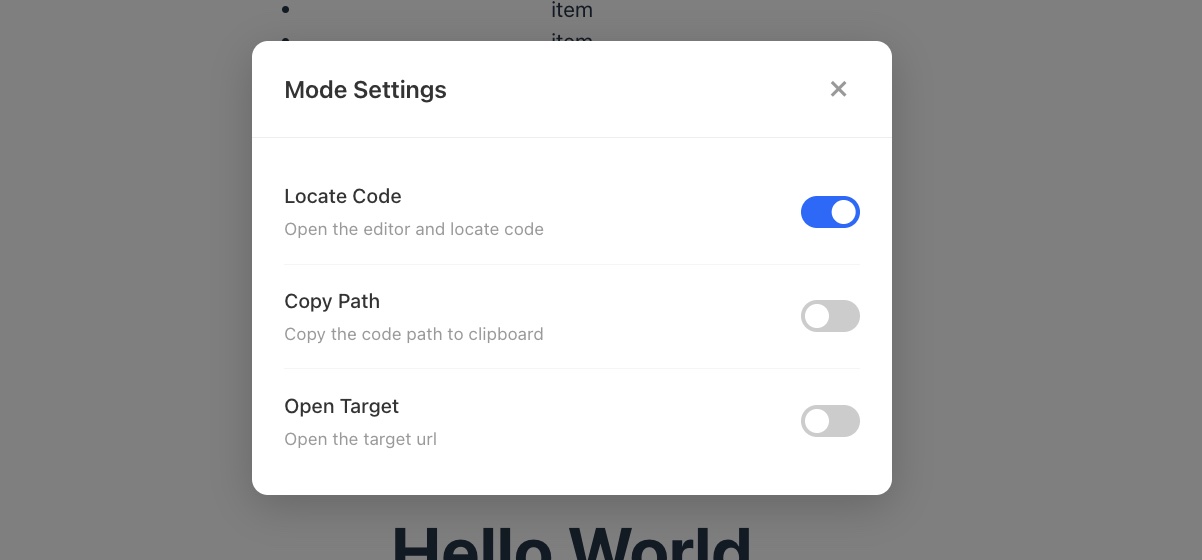
Press the combination key + Z (for example: Option + Shift + Z) to pop up the control window of the feature switch, you can quickly switch the function at runtime.
Quick Select Element
There are two ways to select elements:
Way One (Recommended)
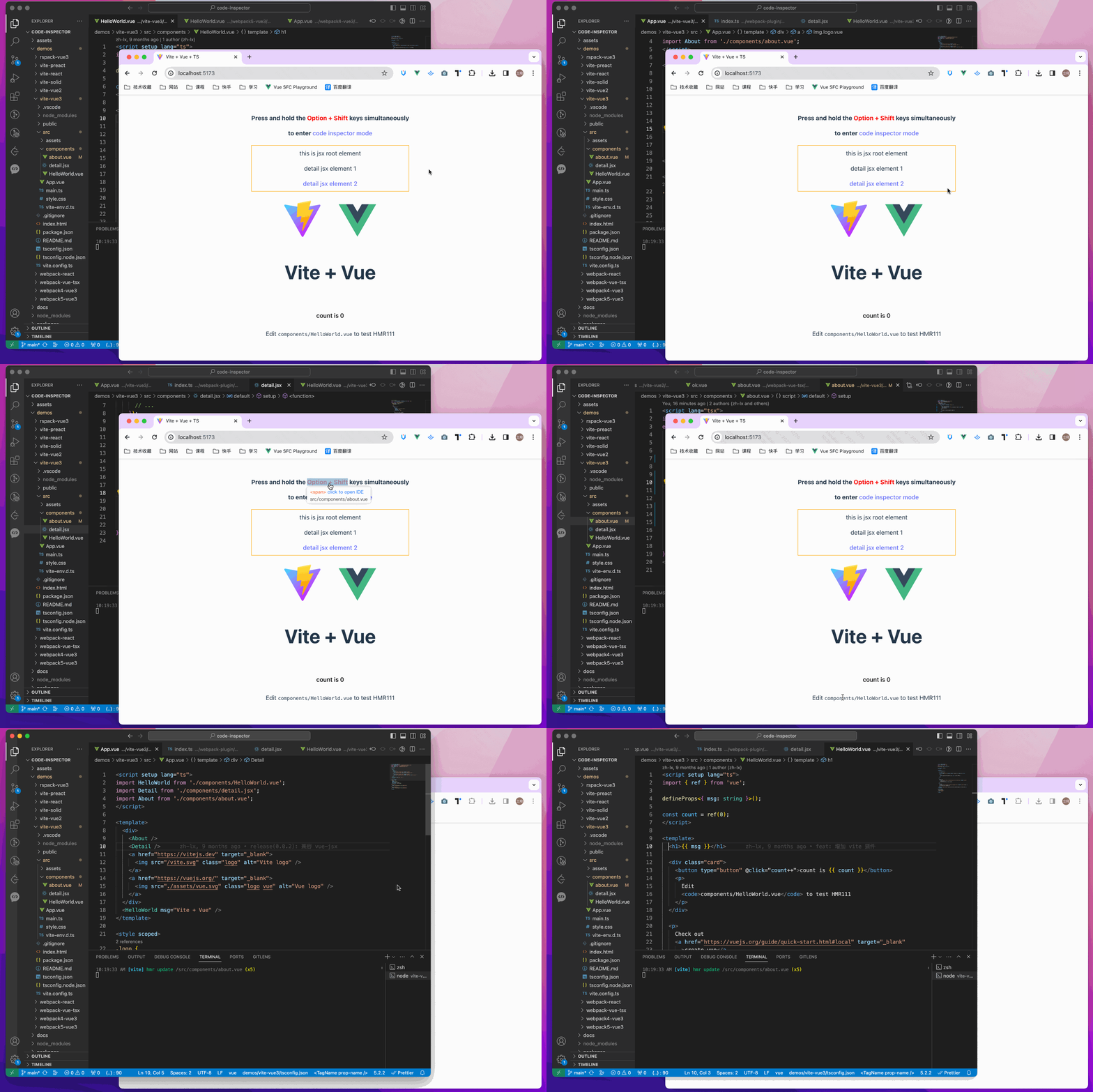
When you press the combination key on the page, the mouse moves on the page will show a mask layer and display related information, click once to automatically open the IDE and move the cursor to the code position of the element. (The default combination key for Mac is Option + Shift; the default combination key for Windows is Alt + Shift, the combination key will be output in the browser console.)

Way Two (Mobile Recommended)
When the showSwitch: true parameter is configured in the plugin parameters, a code inspection switch button will be displayed on the page, clicking which can toggle the code inspection mode on/off. When the switch is colored, it means the code inspection mode is on ; when the switch is黑白, it means the
code inspection mode is off  .
.
Scroll Switch Parent/Child Element
When the combination key is pressed, the parent/child elements can be switched by scrolling with the mouse wheel:
- Scroll up: switch to parent element
- Scroll down: switch to child element

DOM Tree Select Element
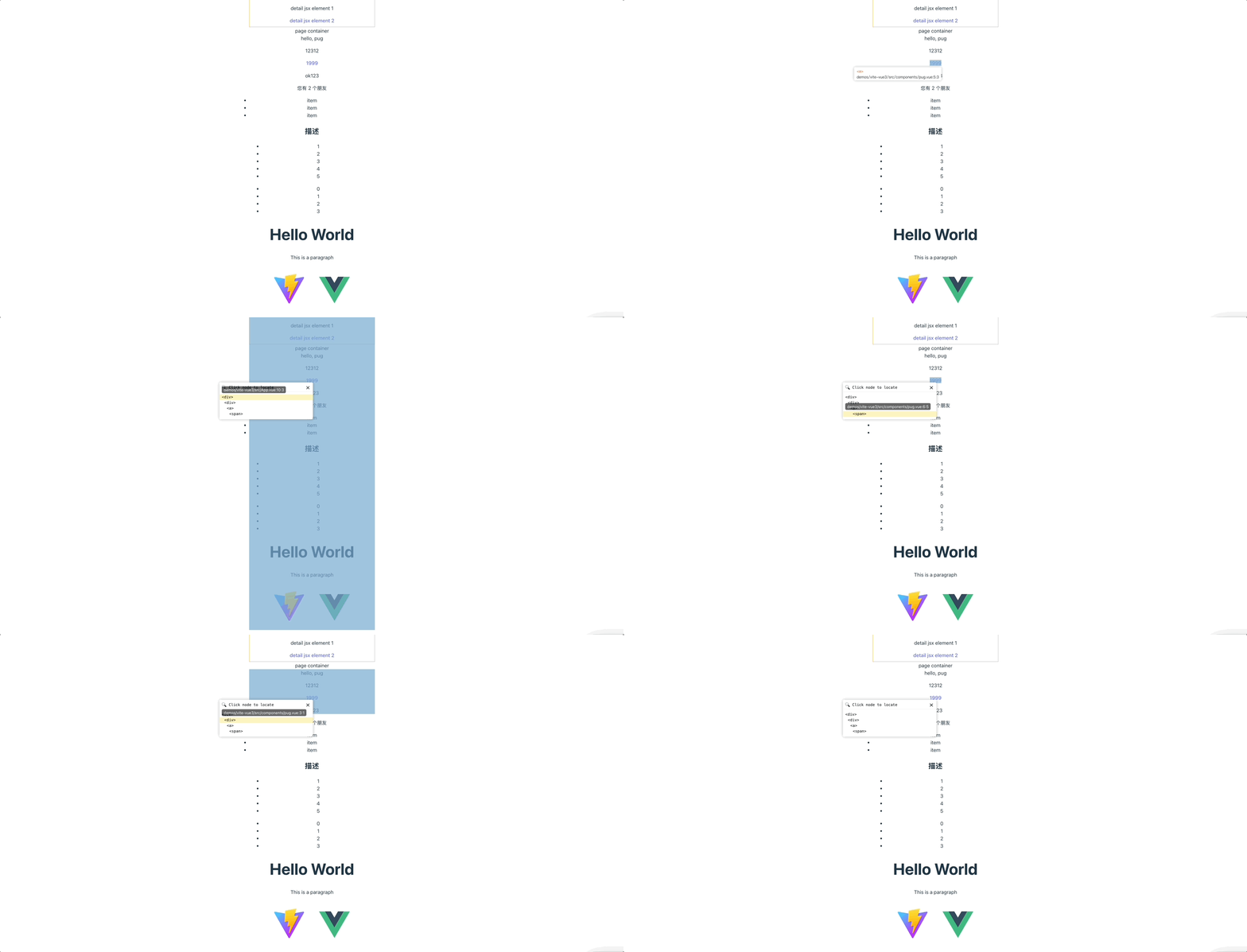
When the combination key is pressed, right-click on an element, the DOM tree selection element will be opened, and after selection, the code editor will be automatically opened and the cursor will be moved to the code position of the selected element.